 EN
EN

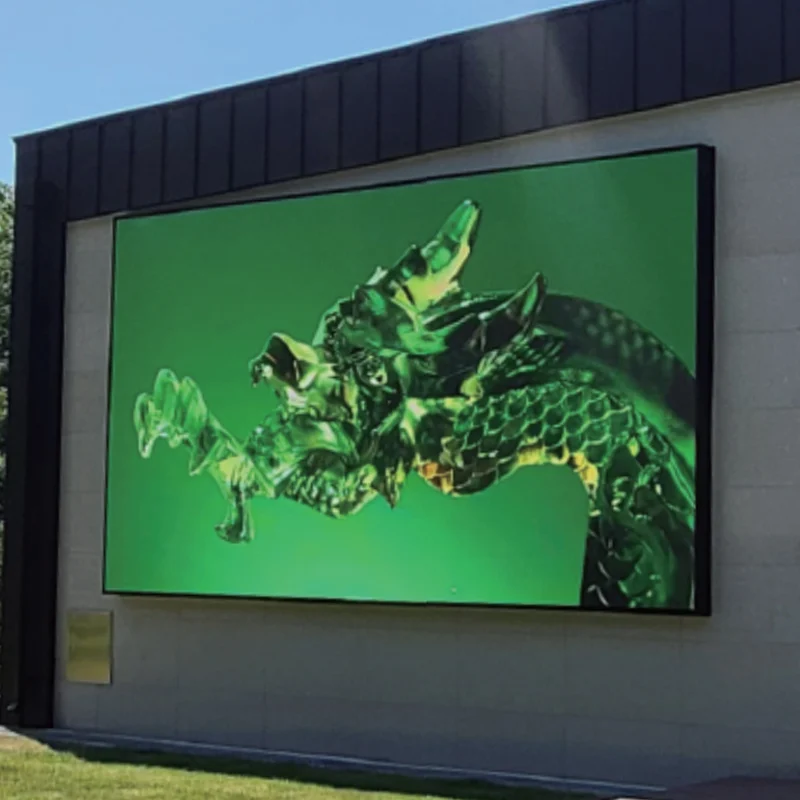
Deploying high-impact digital signage requires consistent, flawless performance to protect brand reputation, maintain audience engagement, and preserve advertiser satisfaction. A sudden malfunction on a commercial led screen immediately disrupts viewer experience, degrades aesthetic appeal, and raises questions about system reliability. Among the most common maintenance challenges, screen flickering stands out as an urgent issue that demands structured, step-by-step diagnostic procedures [source: 2, 5]. Ignoring these early warning signs can lead to severe hardware degradation, sudden component failure, or costly emergency repair visits. For media operators, system integrators, and facility managers, learning to identify the root causes of visual instability is essential to maintaining continuous operation and maximizing the return on display investments.
The Financial and Brand Impact of Screen Flickering
Visible flickering or stroboscopic lines on a digital billboard do more than just look unprofessional; they can cause real physical discomfort, including eye strain, headaches, and visual fatigue for nearby viewers [source: 2, 7, 8]. If a retail display or roadside advertising screen exhibits noticeable flashing, passersby naturally turn away, directly lowering ad viewability and campaign impact. Furthermore, prolonged electrical or signal instability can eventually damage sensitive light-emitting diodes and driver chips, leading to cascading panel failures. Addressing these issues early prevents minor signal drops from turning into complete, system-wide outages.
Visible Flicker versus High-Speed Camera Scan Lines
It is important to distinguish between visible flicker, which is easily seen by the human eye, and camera flicker, which appears as dark rolling lines on smartphone screens or broadcast video [source: 2, 4]. Visible flicker typically operates at lower frequencies, below 80 Hertz, and points to basic hardware issues like unstable power or loose cables [source: 2, 7]. Camera flicker, on the other hand, occurs when the display refresh rate does not sync with a camera shutter speed [source: 4]. Solving this requires matching the camera settings or upgrading to a high refresh rate controller that operates at 3840 Hertz or higher to ensure flicker-free recording [source: 4, 11].
Commercial Event Case Study: Critical Signal Restoration
Operational Scenario: Midday Live Product Launch Event
An international automotive brand hosted a live press conference inside a historic convention hall in Chicago to launch a new electric vehicle. The main stage backdrop featured a high-resolution 150-square-meter led screen showing real-time 4K video feeds and promotional content to three hundred on-site journalists and global live-stream viewers.
Challenges: Sudden Visual Jitter and High-Definition Camera Interference
Ten minutes before the live broadcast, the technical crew noticed severe visual instability. The entire center-left portion of the wall began flashing irregularly, while the broadcast cameras picked up thick, dark rolling scan lines across the entire display. The rapid visual jitter made the on-screen text unreadable for the cameras, risking the visual quality of the highly publicized launch and threatening to delay the event.
Engineered Solution and Rapid Troubleshooting Steps
The lead AV technician initiated a structured, five-minute diagnostic procedure. By isolating the flickering to a specific cabinet column, the technician ruled out a global processor issue and focused on localized connections [source: 4, 5]. The team swapped out a suspected RJ45 network cable between the receiving cards and re-secured a loose flat ribbon cable inside the malfunctioning cabinet [source: 2, 5]. Simultaneously, using the control software, the technician adjusted the display parameters, increasing the refresh rate of the receiving cards to 3840 Hertz and fine-tuning the camera shutter speeds to eliminate the rolling lines [source: 4, 11, 12].
Diagnostic Phase
Identified Issue
Corrective Action
Operational Result
Step 1: Visual Isolation
Localized cabinet column jitter
Checked signal flow of the local receiving card
Confirmed issue was not a global processor fault
Step 2: Cable Assessment
Damaged RJ45 cable, loose ribbon cable
Replaced Ethernet cable, re-seated module ribbons
Restored stable local data transmission
Step 3: Software Sync
Rolling camera scan lines
Boosted refresh rate setting to 3840 Hertz
Eliminated camera flicker for the broadcast
| Diagnostic Phase | Identified Issue | Corrective Action | Operational Result |
|---|---|---|---|
| Step 1: Visual Isolation | Localized cabinet column jitter | Checked signal flow of the local receiving card | Confirmed issue was not a global processor fault |
| Step 2: Cable Assessment | Damaged RJ45 cable, loose ribbon cable | Replaced Ethernet cable, re-seated module ribbons | Restored stable local data transmission |
| Step 3: Software Sync | Rolling camera scan lines | Boosted refresh rate setting to 3840 Hertz | Eliminated camera flicker for the broadcast |
The quick intervention solved the problem five minutes before the broadcast began. The display maintained perfect visual clarity throughout the two-hour event, ensuring the vehicle launch was captured beautifully on global broadcasts.
Technical Analysis of Display Flickering Mechanisms
Power Supply Instability and Voltage Fluctuations
Unstable power is a major cause of screen flickering [source: 1, 2]. LED modules require highly stable, low-voltage DC power to maintain consistent brightness. If the main AC power fluctuates, or if a switching power supply becomes overloaded, the output voltage drops below the minimum threshold required by the constant-current driver ICs [source: 4]. This voltage drop causes individual panels to blink or dim, especially when displaying bright, high-power white content [source: 2, 4]. Ensuring a balanced power load across all phases and using high-quality, regulated power supplies prevents this type of voltage-induced flickering [source: 4].
Signal Transmission Integrity and Cable Length Limits
Data signal degradation is another common culprit behind erratic screen behavior [source: 2]. Digital video data travels from sending cards to receiving cards via standard copper Ethernet cables [source: 2, 4]. If an Ethernet cable exceeds the recommended ninety-meter limit, or if the RJ45 connectors are poorly crimped, signal attenuation and electromagnetic interference can occur [source: 2, 4]. This weak signal leads to packet loss, which receiving cards struggle to process, resulting in random, localized screen flickering or pixel jitter [source: 2, 5].
Refresh Rate and Grayscale Driver Configuration
The refresh rate, measured in Hertz, is the number of times per second the led screen redraws its image [source: 11, 15]. Standard displays often operate at a basic 1920 Hertz refresh rate, which is fine for the human eye but often causes rolling lines on modern high-speed cameras [source: 11]. Advanced displays utilize pulse-width modulation (PWM) driver chips that achieve high refresh rates of 3840 Hertz or higher [source: 4, 11]. Properly configuring the driver IC clock speed and loading the correct configuration file onto the receiving cards is essential to keeping the display synchronized and stable [source: 4, 12].
Quality Standards and Preventative Maintenance
International Compliance and Quality Standards
When purchasing or installing commercial displays, verifying compliance with international engineering and safety standards is key to long-term reliability. Reliable systems adhere to electromagnetic compatibility standards like FCC Part 15 and European CE directives, which ensure the display does not emit or suffer from excessive electromagnetic interference. Power supplies should carry recognized safety certifications such as UL or TÜV, confirming they can handle voltage fluctuations safely. Additionally, structural installations should meet local wind and load requirements, such as those defined by the American Society of Civil Engineers (ASCE 7), to protect outdoor structural integrity.
Preventive Maintenance and Inspection Routines
Regular preventative maintenance is the best way to prevent screen flickering from occurring in the first place [source: 2]. Maintenance teams should conduct semi-annual inspections of all power distribution boxes, tightening terminal screws to prevent voltage drops. Checking the RJ45 data connectors and replacing worn patch cables prevents signal loss [source: 2, 5]. For outdoor displays, keeping the ventilation paths clear and cleaning dust or salt deposits off the modules prevents heat buildup, ensuring the sensitive driver ICs and power supplies operate within their safe thermal limits [source: 2, 4].
Frequently Questions and Expert Answers
Frequently Questions
Question
Why does an LED screen flicker when viewed through a smartphone camera?
Answer
Camera flickering occurs because of a mismatch between the screen refresh rate and the camera shutter speed [source: 4]. If the screen refresh rate is set too low, the camera captures the rapid, micro-second on-off cycles of the LEDs as dark, rolling scan lines [source: 4, 7]. Upgrading to high refresh rate receiving cards that operate at 3840 Hertz or higher solves this, ensuring smooth, flicker-free images on camera [source: 11, 12].
Question
How can I tell if flickering is caused by a hardware fault or a software setting?
Answer
If the flickering is synchronous across the entire screen, it is usually a software configuration issue, a refresh rate mismatch, or an unstable main power source [source: 4, 5]. If the flickering is localized to a single cabinet or module, it is typically a hardware issue, such as a loose ribbon cable, a damaged RJ45 cable, or a failing local power supply [source: 2, 4, 5].
Question
Can a faulty Ethernet cable cause an entire LED display wall to flicker?
Answer
Yes, if the faulty Ethernet cable is the main data link connecting the sending card to the very first receiving card in the chain [source: 2, 4]. A damaged or overly long cable at this critical junction will disrupt the entire data stream, causing signal dropouts and synchronized flickering across the entire video wall [source: 2, 4, 5].
Question
Does operating a display at low brightness levels increase the risk of screen flicker?
Answer
Some displays that use basic pulse-width modulation (PWM) dimming can exhibit noticeable flicker when brightness is turned down very low [source: 2, 7]. This happens because the "on" cycle of the LEDs becomes extremely short. Using advanced PWM driver ICs with high-frequency dimming prevents this, maintaining a stable, flicker-free image even at low brightness [source: 4, 11, 12].
Question
What is the recommended maximum cable length for data transmission to prevent signal drops?
Answer
Standard copper Category 6 Ethernet cables should not exceed ninety meters between the controller and the screen, or between individual cabinets, to prevent signal attenuation [source: 2, 4]. For installations requiring longer distances, using fiber optic cables with reliable media converters ensures high-speed, interference-free data transmission over several kilometers.
Table of Contents
- Commercial Event Case Study: Critical Signal Restoration
- Diagnostic Phase Identified Issue Corrective Action Operational Result Step 1: Visual Isolation Localized cabinet column jitter Checked signal flow of the local receiving card Confirmed issue was not a global processor fault Step 2: Cable Assessment Damaged RJ45 cable, loose ribbon cable Replaced Ethernet cable, re-seated module ribbons Restored stable local data transmission Step 3: Software Sync Rolling camera scan lines Boosted refresh rate setting to 3840 Hertz Eliminated camera flicker for the broadcast
- Technical Analysis of Display Flickering Mechanisms
- Quality Standards and Preventative Maintenance
- Frequently Questions and Expert Answers
